
From inquiry to paid invoice
This guide follows one job along the whole path quote2done covers: from an e-mail asking for a price, through an offer the AI agent prepares, the schedule and the work on site, to the invoices, the payments and the e-invoice. At each step it says why the step is there, what the application does by itself and what is left to a person.
The example we follow
Fernhill Installations Ltd. is an invented installation company of twelve people. It fits water, heating and underfloor heating. Three of its people appear in the story:
- Emma Clarke in the office (the Office role) — she handles inquiries, offers and invoices,
- Daniel Reed, the installation lead (the Manager role) — he plans who does what and when,
- Tom Hayes, a fitter (the Employee role) — he does the work on site.
The customer is Oakridge Developments Ltd., a developer, invented as well. One Monday they send an e-mail: they want underfloor heating in a family house with 180 m² of floor, and they attach the plans as PDFs.
By the end of the story Fernhill will have sent an offer for €15,000.00 before VAT (€18,450.00 with VAT), planned the job in working days, issued two partial invoices and a final invoice that takes them off, and been paid in full.
1. The e-mail becomes an inquiry by itself
Fernhill has connected the shared Microsoft mailbox its customers write to. The application reads the mail from it into Email › Inbox as it arrives. Nobody forwards or retypes anything.
The company's AI agent reads every new message and decides whether it asks for a price. Oakridge's message clearly does, so the agent makes an inquiry out of it at once: what the customer wants, the trade and the building type, where the site is, who the contact is and by when they need an answer. It also notes what is not clear yet — here, whether the ground-floor bathroom gets underfloor heating too. In the list, the message gets the Inquiry mark; opened, it shows the agent's summary, the attached plans and the Open the inquiry button.
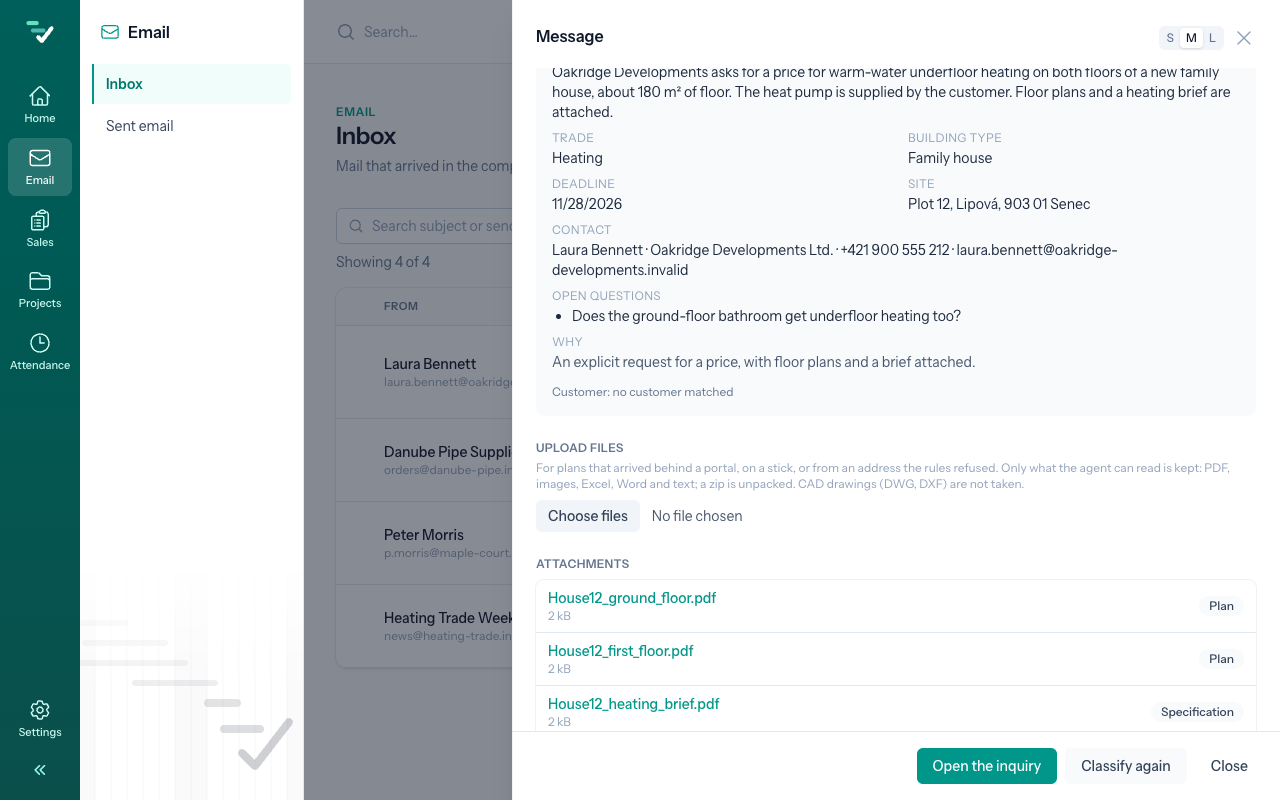
Why an inquiry and not an offer straight away? The inquiry is what the customer wants; more than one offer can come from it (two versions to compare, say). It keeps the plans, the questions and the answers, so nothing of the e-mail exchange is lost.
If the company does not want the agent to read the mail, the mailbox can be set to be read by hand. Then Emma opens the message and makes the inquiry with Make an inquiry. More: Connect a mailbox, Make an inquiry from an e-mail.
2. Who the customer is
Emma opens the inquiry under Sales › Inquiries. The application suggests a customer when it knows one — by the company name in the signature or by the e-mail's domain. Oakridge is new to Fernhill, so Emma presses New customer from the contact and adds their company number (IČO) and tax number (DIČ). The customer chosen on the inquiry goes onto every offer made from it.
The tax number is worth adding now: without it, no e-invoice can go out later.
3. The agent prices the plans
This is the step that saves the company the most time. Under Sales › Pricing rules Fernhill keeps its price list for underfloor heating: what is counted (floor area, number of circuits, manifolds, the pressure test), in which unit, at what price, with a minimum price and a rate that changes with the size of the job.
When the agent is sure of the inquiry, has plans it can read and the company has a price list for that trade, it starts pricing by itself — the inquiry says so. Otherwise Emma presses Prepare an offer. The agent:
- reads the plans page by page,
- counts what the price list asks for — here 180 m² of heated floor, 14 circuits, a manifold on each of the two floors and 12 room thermostats,
- prices them only from the company's price list and its catalogue; it never makes a price up,
- writes down where each figure came from, what it assumed and what to ask the customer.
The result is a price offer with the status AI prepared, in our example for €15,000.00 before VAT, €18,450.00 with 23 % VAT. Nothing has gone to the customer — the agent never sends anything.
If the documentation is more than the agent reads in one go, it does not start by itself: the inquiry shows what the reading would cost and a person decides. More: Prepare an offer, Pricing rules.
4. Emma checks the offer
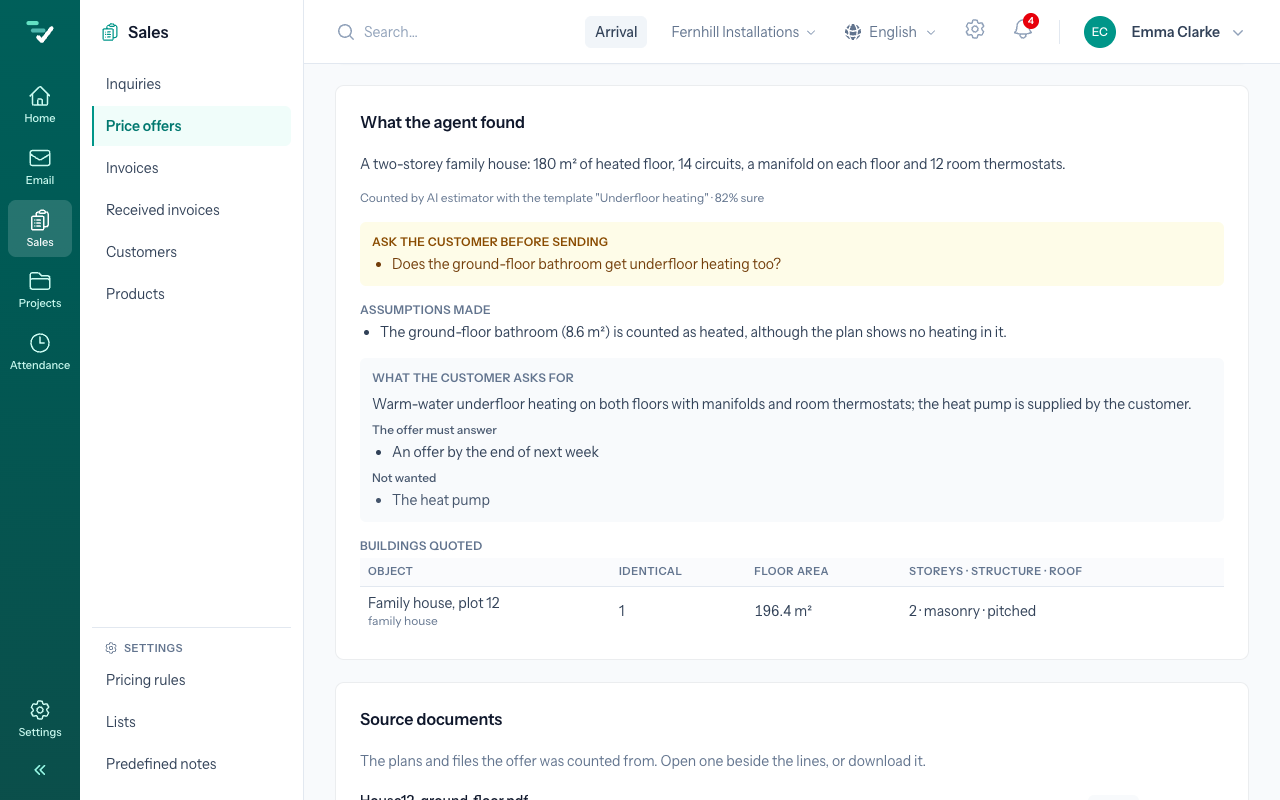
An offer from the agent is a draft to be read the way you would read a colleague's work. Its page has the What the agent found panel: what the agent counted, which price list it used and how sure it was (here 82 %), what to ask the customer before sending, what it assumed, and what the customer asked for and does not want.
Below the panel, under Where each count comes from, every line shows the file and page of the plans its quantity came from, and how the price was reached (minimum, rounding, the rate from the table). Emma opens the plan beside the lines and compares the figures.
In our example the agent asks whether the ground-floor bathroom gets underfloor heating too — the plan does not make it clear — and in the meantime it has counted the bathroom as heated. Emma rings the customer, who says yes. She writes the answer on the inquiry under Open questions. The agent's assumption holds, so the offer stays at €15,000.00 before VAT. Had the customer said no, Emma would press Count again with the answers and the agent would count the offer again with the answer.
If the price list offers choices — two floor systems, say — the agent takes the one the documents ask for and leaves the others on the offer as inactive options. Emma can switch to one without the plans being read again. More: Review an offer prepared by AI, Open questions, Options on an offer.
5. The offer goes to the customer
Emma presses Send. An e-mail window opens with the offer's PDF attached; it goes from the shared mailbox, so the customer gets an ordinary e-mail from Fernhill. From now on the offer's status is Sent, and beside it you see whether the e-mail went.
Had a line been left without a price, or a question unanswered, the application would ask once more before sending. The offer also has a Valid until date; if the customer does not answer, a notification comes a few days before it runs out. More: Send an offer.
6. The customer accepts, and the job is made
A week later Oakridge confirms the order by e-mail. On the offer, Emma presses Mark accepted and then Create job.
The new job's window opens with the customer and Emma as the person responsible already filled in, and a name, which Emma changes to Underfloor heating – family house. She chooses the template — Fernhill has one for underfloor heating in a family house — and the deadline Oakridge asked for. Under the template a line sums it up: 16 tasks, 101.5 hours of work, usually delivered in about two months. Unfolded, it lists the tasks, and Emma can leave out any the job does not need.
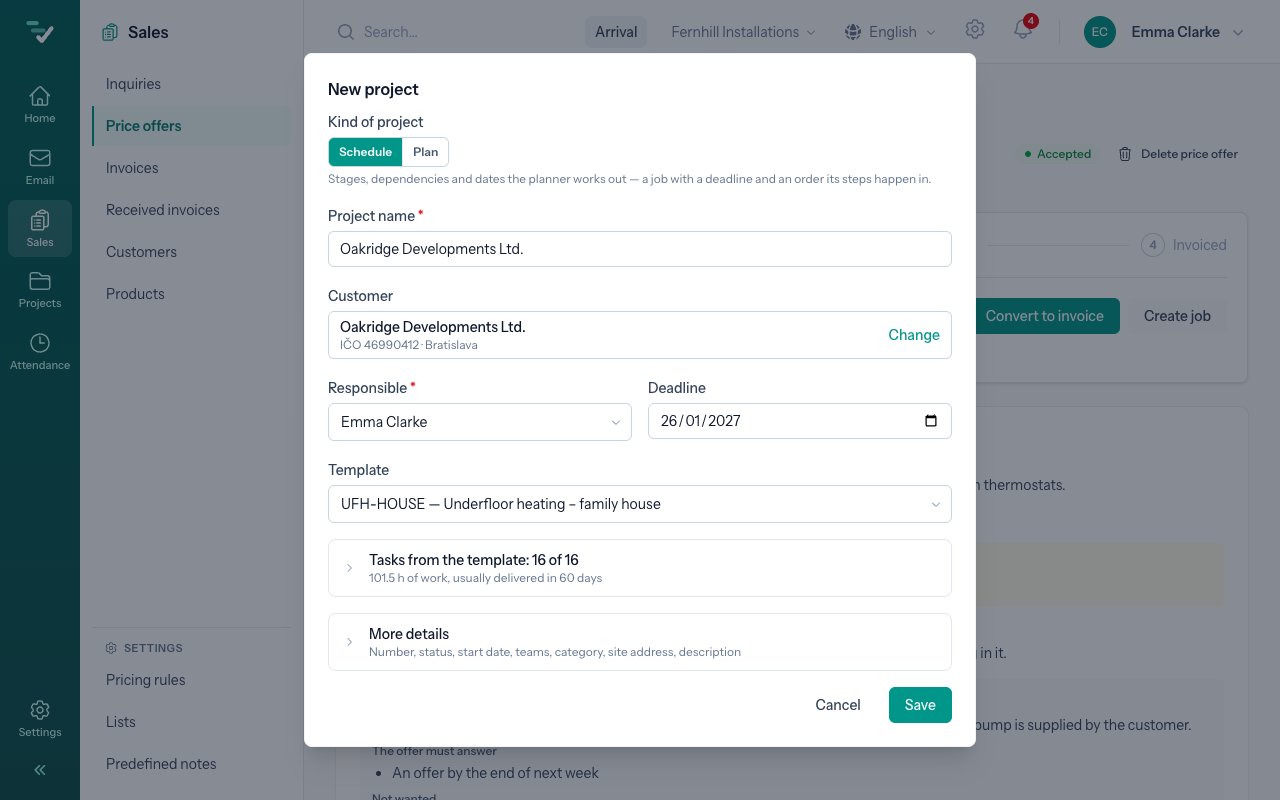
Why a template? A company does similar jobs again and again. The template carries the stages, the tasks, their order, the estimated hours and the checks — survey, order the material, lay the circuits, pressure test, wait for the screed, first heat-up, handover. The job gets them all at once and nobody types them in.
The job remembers the offer it came from: the offer links to the job, the job links back to the offer, and nobody makes a second job from the same offer by mistake. More: New job, Project templates.
7. A plan in working days
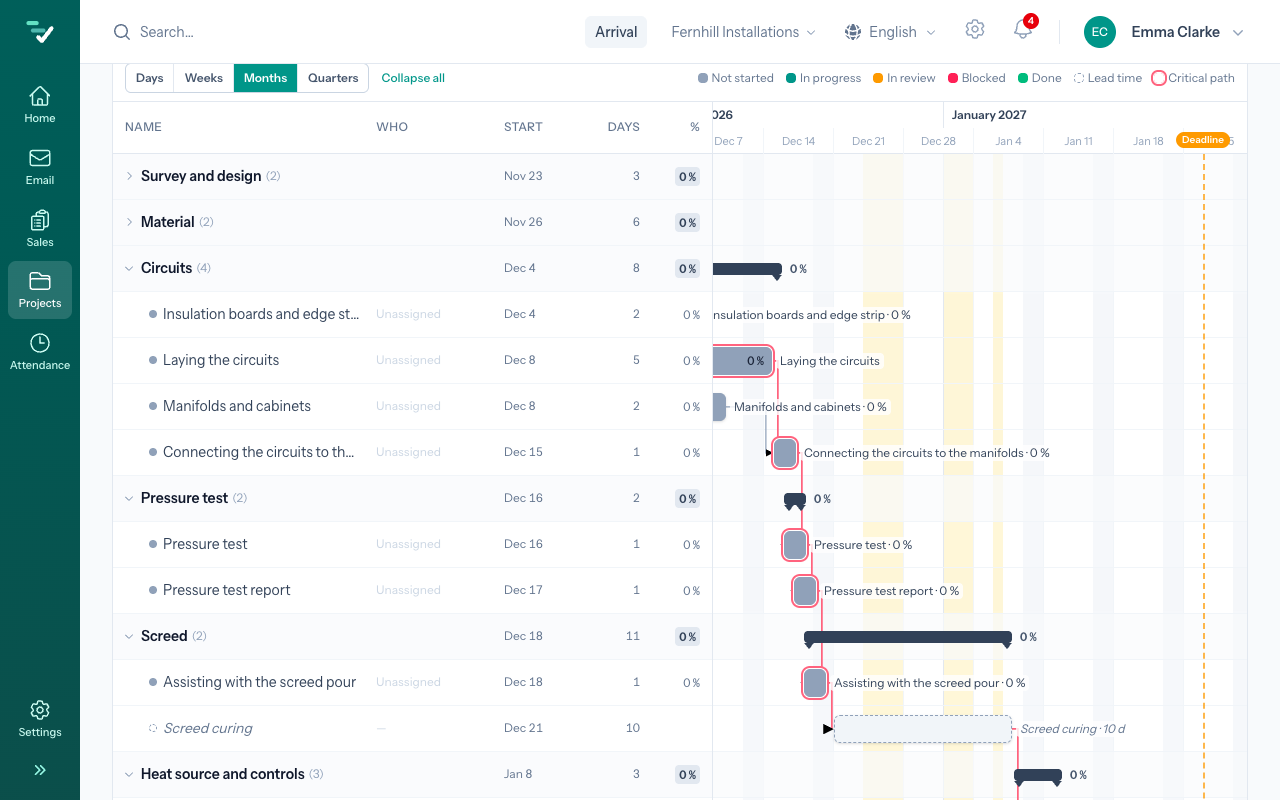
The job's page has the Schedule tab. The application builds the schedule from the template's tasks by itself: each task is a bar, a task that follows another starts only when that one ends, and hours turn into days at the company's working day.
Everything counts in working days on the Slovak calendar. The job, number 26-0001, starts on the Monday of the following week and runs about seven weeks, across Christmas and the New Year: the holidays are skipped by the planner without anybody entering them. The work comes out finished about two weeks before the deadline — that is its Slack. At the Months scale the whole job fits on one screen.
Two things worth noticing:
- A lead time is not work. The screed has to cure; the material arrives in five days. Such a row has a length but no hours and nobody on it — it is never "unassigned".
- The schedule is a forecast. Unfinished work never stays in the past; when something runs late, everything after it moves, and the Critical path shows what is pushing the end of the job.
Now Daniel steps in. He presses Propose people, and the application proposes who does which task and when — from people's skills, their hours, approved leave and their hours on other jobs. Tom gets the circuits, a more experienced colleague the pressure test. Nobody is assigned until Daniel accepts the proposal with Accept. Planning belongs to the leads; the office does not plan.
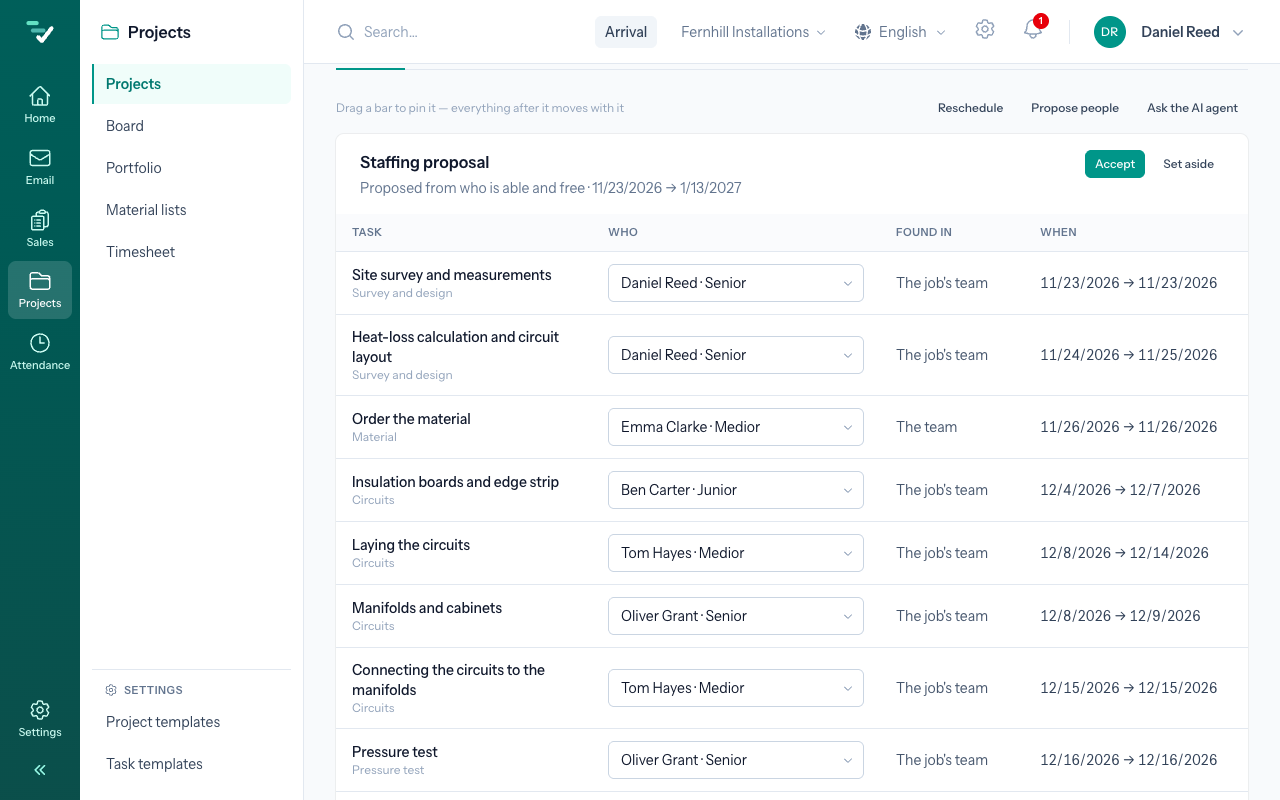
More: Schedule, Staffing proposal.
8. Work on site
In the morning on site, Tom presses Arrival in the top bar — or simply starts the clock on his task with Start timer, which opens his day in attendance by itself. The hours go onto the task and into attendance together; in the evening he presses Departure. If he forgets the clock, he adds the time afterwards with Log time by hand.
Tasks move across the Board. When Tom has laid the circuits he marks the task done; the pressure test carries a check that Daniel signs off. Everything that happens on the job — who started, finished, blocked or approved what — stays in its history, and the people it concerns hear of it.
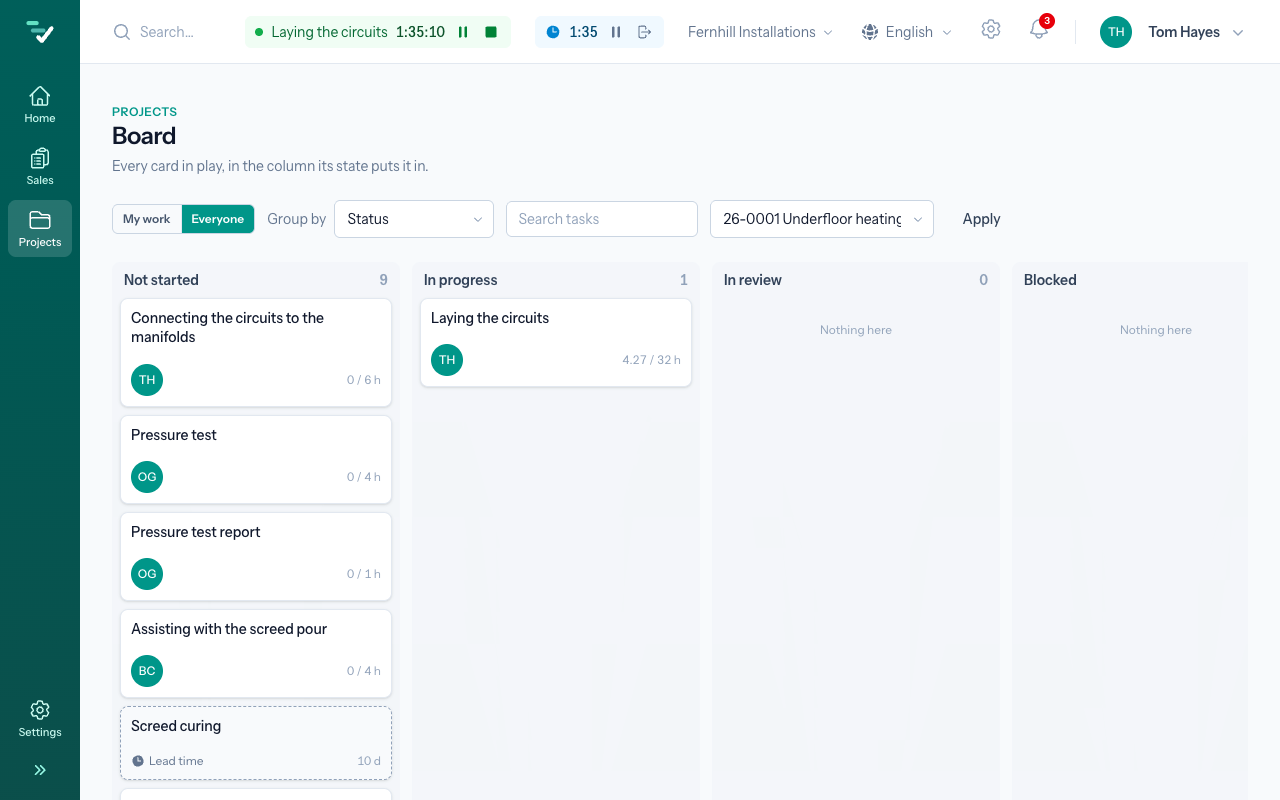
Why two clocks? The day clock says how long somebody was at work; the task clock says what those hours went on. From the second, the company sees whether its template estimates well. More: Task clock, My attendance, Board.
9. Invoicing in parts
A job of €18,450 is not invoiced in one go. Fernhill and Oakridge agreed on three parts: 30 % on ordering, 40 % once the circuits are laid, the rest on handover.
The job's page has an Invoicing section. It shows the Contract (the accepted offer's total), what has been invoiced, what has been paid, and what is Left to invoice.
The first part, as the work starts. Emma presses Partial invoice, enters 30 percent and presses Draft the invoice. A draft invoice of €5,535.00 appears (€4,500.00 + €1,035.00 VAT). Its lines follow the offer — each part of the offer and each VAT rate is a line of its own, and the offer's discount applies here too. The invoice knows its job, so the job's and the offer's numbers are on its print and on the e-invoice.
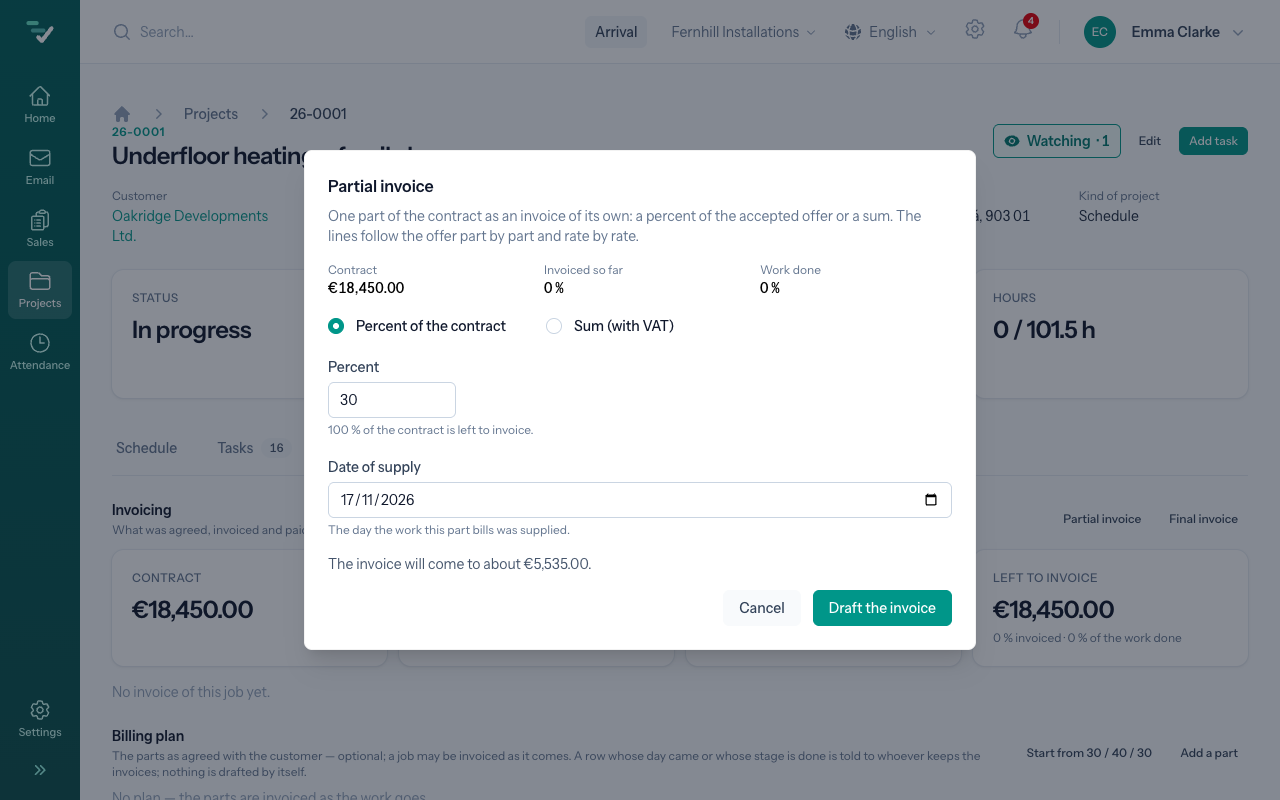
The second part, after the pressure test. The window now also offers the percentage of the work done, as the schedule sees it. Emma enters 40 percent: €7,380.00. The application makes sure the parts together never go past the agreed price.
Had Fernhill known the parts up front, Emma could have written them in as a billing plan (with Start from 30 / 40 / 30, for example): when a part comes due, a notification arrives in the morning, but a person still drafts the invoice. More: Job invoicing.
10. Sending, and the e-invoice
A draft is not a document yet — it can be changed and even deleted. Emma opens it, presses Review to see the invoice as the customer will, then Send to customer. Sending freezes both companies' details and the job's number on the invoice: if Fernhill later changes its address or bank account, the issued invoice stays as it went.
Fernhill is connected to e-invoicing over Peppol. From 2027 every invoice between two Slovak businesses must go this way; Fernhill already does it. So in the e-mail window Also as an e-invoice is ticked — the invoice goes by e-mail with its PDF and over the Peppol network at once. The invoice then carries an E-invoice panel showing where it is: on its way, reported to the tax office, delivered, accepted by the buyer.
Were Oakridge not in the Peppol network, the panel would say so; the duty is met and the PDF went to them by e-mail. More: Send an invoice, E-invoice.
11. Payments
The first invoice is due in 30 days (the customer's payment terms). Oakridge pays it in two transfers. When the first, €2,000.00, arrives in the account, Emma fills in the day and the amount in the invoice's Payments section and presses Write in a payment. The invoice stays open and shows €3,535.00 still owed. When the rest comes, she writes that in too: the payments have reached the invoice's total, so its status is Paid — as of the day the last money came.
Every payment is a row of its own, so a customer who pays in parts is no extra work. Once the due date passes, the invoice is Overdue, and a week later whoever sends the invoices is notified. More: Payments.
12. The final invoice
After the handover, Emma presses Final invoice. The window sums up what is left and, were the work not finished, would warn her.
The final invoice lists the whole work from the offer — €15,000.00 before VAT — and below it takes off both partial invoices, each by its number. What remains is €4,500.00 + €1,035.00 VAT, that is €5,535.00. The customer and their accountant see the whole job and what has been paid on one document.
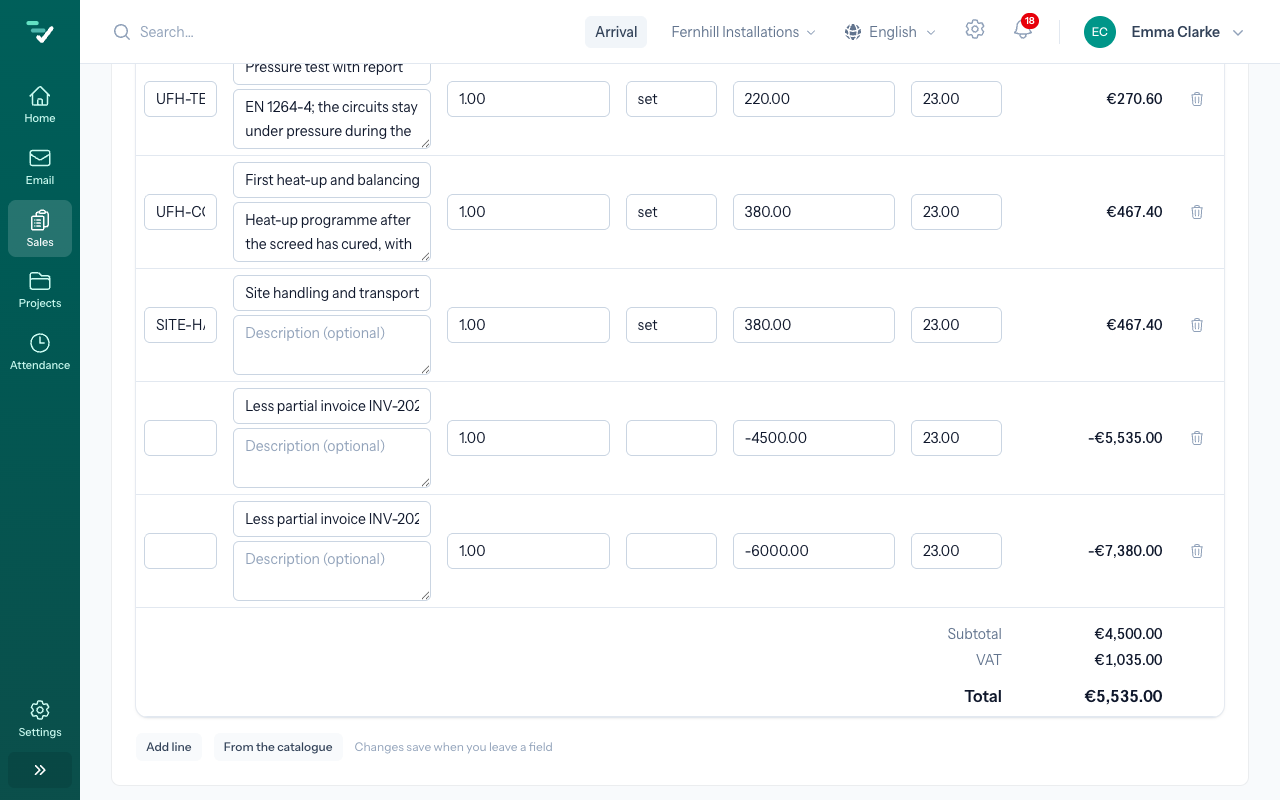
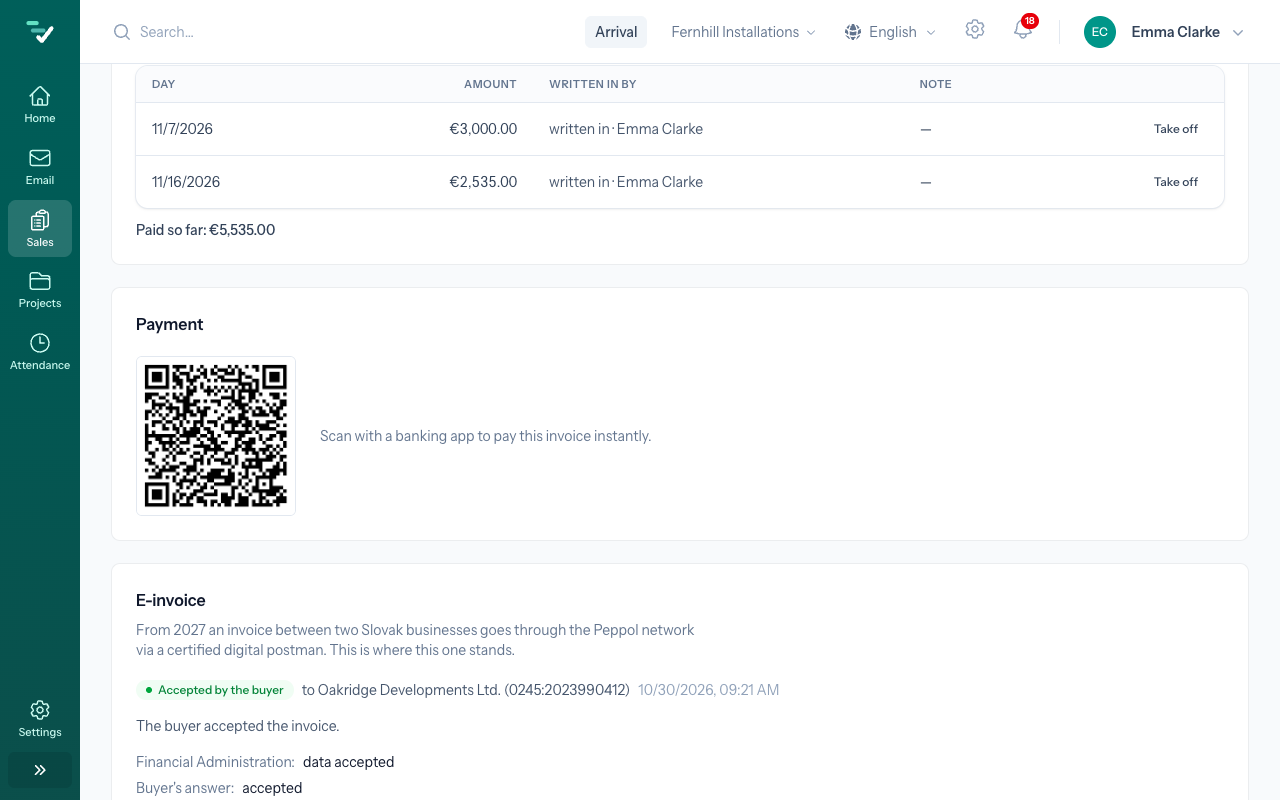
Oakridge pays this one in two transfers too: €3,000.00 and, about a week later, €2,535.00. Emma writes in both; with the second the invoice is paid, and the job's Invoicing section shows everything invoiced and paid. Meanwhile the e-invoice panel has shown that the buyer accepted the invoice.
Once every task is done, the job can be marked delivered. While any work is still open, the application does not allow it.
What the application did by itself
| Step | The application, by itself | A person |
|---|---|---|
| read it, recognised the inquiry, made it | — | |
| Pricing | read the plans, counted, priced from the price list | answered the questions |
| Offer | made the PDF, reminded of the validity | checked it and sent it |
| Job | took over the customer and the template's tasks, laid them out in working days | chose the template, accepted the staffing |
| Work | joined the hours on tasks with attendance | ran the clock, moved the tasks |
| Invoices | split the offer into parts, took them off at the end, sent the e-invoice | pressed and sent, wrote in the payments |
If you do not see a button, your role does not have it — what each role may do is in the roles overview.
Next: Invoices · Related: First steps